
Download Google Drive to OneDrive Migration Tool – free, secure cloud transfer solution
Overview of Google Drive to OneDrive Migration Tool
In today’s fast‑moving digital workplace, switching cloud storage providers can feel like a daunting task. Whether you’re moving from Google Workspace to Microsoft 365 for better collaboration, consolidating data after a merger, or simply looking for a more cost‑effective solution, the Google Drive to OneDrive Migration Tool offers a reliable bridge between two of the most popular cloud platforms. Developed by Migrate Cloud Data, this full‑version Windows application falls under the “Backup & Cloud Storage” category and is purpose‑built to transfer files, folders, documents, and even shared items from Google Drive to OneDrive with minimal manual effort.
What sets this migration utility apart is its focus on security and speed. The software uses OAuth 2.0 authentication, meaning your credentials never touch the local machine; the connection is established directly between Google’s and Microsoft’s APIs. This eliminates the risk of password leaks and ensures compliance with enterprise security policies. Moreover, the tool supports bulk transfers, enabling you to move terabytes of data in a single operation without having to download and re‑upload files manually.
The interface is designed for both technical and non‑technical users. A wizard‑style workflow guides you through selecting source folders, mapping destination locations, and configuring optional filters such as file type exclusions or size limits. Real‑time progress bars and detailed logs keep you informed of every step, making troubleshooting straightforward if any hiccups occur. Whether you’re an IT administrator handling dozens of accounts or a solo professional looking to switch personal cloud storage, the Google Drive to OneDrive Migration Tool delivers a seamless, hassle‑free experience.
Key Features & Benefits
- One‑Click Authentication: Secure OAuth 2.0 login for both Google Drive and OneDrive eliminates password handling.
- Bulk Migration Engine: Transfer thousands of files and folders in a single batch, with support for large data sets (up to 10 TB).
- Selective Sync Options: Filter files by type, size, or modification date to migrate only what you need.
- Preserve Metadata: Retains original timestamps, permissions, and sharing settings wherever possible.
- Progress Monitoring & Detailed Logs: Real‑time progress bar, error reporting, and exportable CSV logs for audit trails.
- Schedule & Automate: Set up recurring migrations or timed transfers for ongoing sync scenarios.
- Multi‑Account Support: Manage migrations for multiple Google accounts and OneDrive tenants from a single console.
- Incremental Updates: After the initial full migration, only new or changed files are moved, saving bandwidth.
- Low System Footprint: Runs silently in the background, consuming minimal CPU and RAM.
- Free Trial & Lifetime License: Test the full feature set before purchasing a perpetual license.
These capabilities translate into tangible business value. By automating the migration process, organizations can reduce IT labor costs, avoid data loss, and meet compliance deadlines with confidence. The preservation of sharing permissions means that collaboration continues uninterrupted after the move, while selective sync helps control storage costs on the new platform. For freelancers and small teams, the free trial offers a risk‑free way to evaluate the tool before committing to a license, ensuring the solution fits both budget and technical requirements.
Installation, Usage Instructions & System Compatibility
Step‑by‑Step Installation
Installing the Google Drive to OneDrive Migration Tool is straightforward. First, download the installer from the official Migrate Cloud Data website. The .exe file is signed with a valid digital certificate, guaranteeing authenticity and preventing tampering. Double‑click the installer, accept the End‑User License Agreement, and choose the destination folder (the default location works for most users). The setup wizard will automatically install required .NET runtime components if they are missing, ensuring the application runs smoothly on Windows 10, Windows 11, and even legacy Windows 7 (with Service Pack 1).
Launching & Configuring the Migration
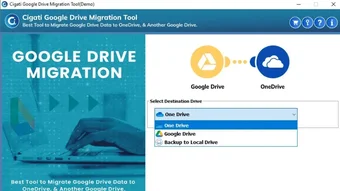
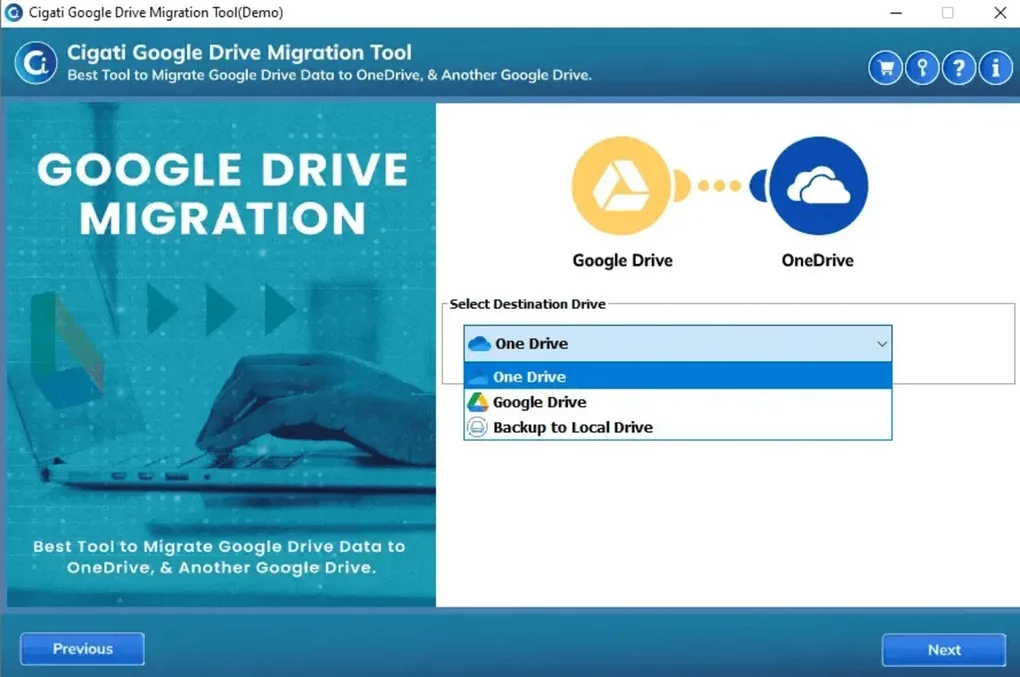
Once installed, launch the program from the desktop shortcut or Start menu. The first screen prompts you to sign in to your Google Drive account using the secure OAuth flow; a new browser window opens, you select the account, grant read‑only access, and the token is returned to the app. Repeat the process for OneDrive, selecting the appropriate Microsoft 365 tenant. After authentication, you’ll see a dual‑pane view: the left pane displays your Google Drive hierarchy, and the right pane shows the target OneDrive structure.
To start a migration, simply drag‑and‑drop folders from the left to the right pane, or use the “Add to Queue” button to select multiple items. The “Advanced Settings” tab allows you to define filters (e.g., exclude files larger than 2 GB), enable metadata preservation, and schedule the job for off‑peak hours. Click “Start Migration,” and the engine begins copying data over the internet using encrypted HTTPS channels. Progress is visualized with a percentage bar, estimated time remaining, and a live log that details each file transferred.
System Requirements & Compatibility
The application is optimized for 64‑bit Windows operating systems. Minimum specifications include:
- CPU: Intel i3 (or equivalent) or higher
- RAM: 4 GB (8 GB recommended for large migrations)
- Disk Space: 200 MB for installation plus temporary storage for log files
- Internet Connection: Broadband with at least 10 Mbps upload/download speed for smooth transfers
- Microsoft . NET Framework 4.7.2 or later (installed automatically if missing)
- Supported browsers for OAuth: Edge, Chrome, or Firefox (latest versions)
Pros, Cons & Frequently Asked Questions
Pros
- Secure OAuth authentication eliminates password exposure.
- Handles massive data volumes with a low system footprint.
- Preserves file metadata and sharing permissions.
- Intuitive drag‑and‑drop UI suitable for non‑technical users.
- Flexible filtering and scheduling options.
- Detailed logs and exportable reports for compliance.
- One‑time license – no recurring subscription fees.
Cons
- Windows‑only; macOS users must rely on a virtual machine or remote desktop.
- Initial full migration can be time‑consuming on slow internet connections.
- No built‑in file versioning; relies on OneDrive’s native version control.
- Advanced features (e.g., incremental sync) require the paid license.
FAQ
Can I migrate shared Google Drive files to OneDrive and keep the sharing settings?
Yes. The tool attempts to map Google Drive sharing permissions to the closest OneDrive equivalents. While individual user permissions are preserved, Google Groups are converted to OneDrive sharing links, which you can adjust after migration.
Is there a limit on the number of files I can transfer in one session?
No hard limit exists. The software processes files in batches, so you can migrate thousands of items. However, extremely large libraries may require longer execution times and adequate temporary disk space for log buffers.
Do I need to keep the source files on Google Drive after migration?
The migration is non‑destructive; files remain on Google Drive unless you manually delete them after confirming a successful transfer. This safety net allows you to verify data integrity before cleaning up the source.
What happens if the internet connection drops during migration?
The tool automatically pauses and retries failed transfers. Once connectivity is restored, the migration resumes from the last successful checkpoint, ensuring no duplicate uploads.
Is a license required for the free trial, and how long does it last?
The free trial provides full access to all features for 14 days or up to 5 GB of data transfer, whichever comes first. No credit card information is needed; after the trial, you can purchase a perpetual license to continue using the software.
Conclusion & Call to Action
Moving from Google Drive to OneDrive no longer has to be a complex, error‑prone process. The Google Drive to OneDrive Migration Tool combines security, speed, and ease‑of‑use into a single Windows application that empowers both IT professionals and everyday users to transition their cloud data with confidence. By preserving metadata, supporting massive data sets, and offering granular control over what gets moved, the tool addresses the most common migration challenges while keeping costs low—thanks to its one‑time purchase model.
If you’re ready to streamline your cloud migration, reduce manual effort, and avoid the pitfalls of a DIY download‑upload approach, click the download button below. Start with the free trial, evaluate the seamless transfer experience, and then upgrade to the full version for unlimited migrations. Take control of your data today—download the Google Drive to OneDrive Migration Tool and make your cloud move effortless.
Download Now – Secure, Free Trial- Secure OAuth authentication
- Bulk transfer up to 10 TB
- Preserves permissions and timestamps
- Intuitive UI with drag‑and‑drop
- Windows‑only
- Initial transfer time depends on internet speed







